Scheduled Tweet Twitter: Complete Setup Guide for X in 2026
Schedule a tweet on Twitter (X) using the free native tool or paid alternatives; full 2026 walkthrough for web, mobile, threads, and recurring posts.


You wrote a great tweet at midnight. Posting it now means it dies in the overnight feed. Saving it as a screenshot to repost tomorrow means you forget. The fix is a scheduled tweet on Twitter: queue it for 9 a.m. tomorrow, close your laptop, and let X handle the rest. The native scheduler is free, supports up to 18 months ahead, and works for single tweets, threads, polls, and media posts.
This guide walks through every aspect of scheduling a tweet on X in 2026: the native web flow, mobile workarounds, scheduling threads, editing or canceling queued posts, and the third-party tools that add features the native scheduler still lacks. By the end, you will have a workflow that ships consistent content without you having to be online for every publish.
What Is a Scheduled Tweet on X?
A scheduled tweet is any post you write now and tell X to publish later, at a specific date and time. The tweet sits in your "Scheduled posts" queue until the publish moment, when it goes live exactly as if you had pressed "Post" yourself. The X algorithm cannot distinguish between scheduled and manually posted tweets at publish time, so engagement and reach behave identically.
Scheduling solves three problems at once: (1) it lets you write when you have the energy and publish when your audience is online; (2) it batches your work so you stop context-switching; (3) it maintains posting cadence even when you are traveling, in meetings, or sleeping. According to Metricool's 2026 study of 1.1 million posts, the average X account now posts 17.34 times per week (up 8% from 2024). Hitting that cadence manually means showing up multiple times a day, every day. Scheduling lets you front-load the work into a single session.
How to Schedule a Tweet on X (Web)
The native scheduler is built into the web compose modal. You will not find it in the mobile app (workarounds below).
Step 1: Open the Compose Modal
Go to x.com on a desktop or laptop. Click the blue "Post" button in the left sidebar.
Step 2: Write Your Tweet
Type the post. Add images, videos, GIFs, polls, or alt text as needed. For threads, click "Add another post" to chain tweets.
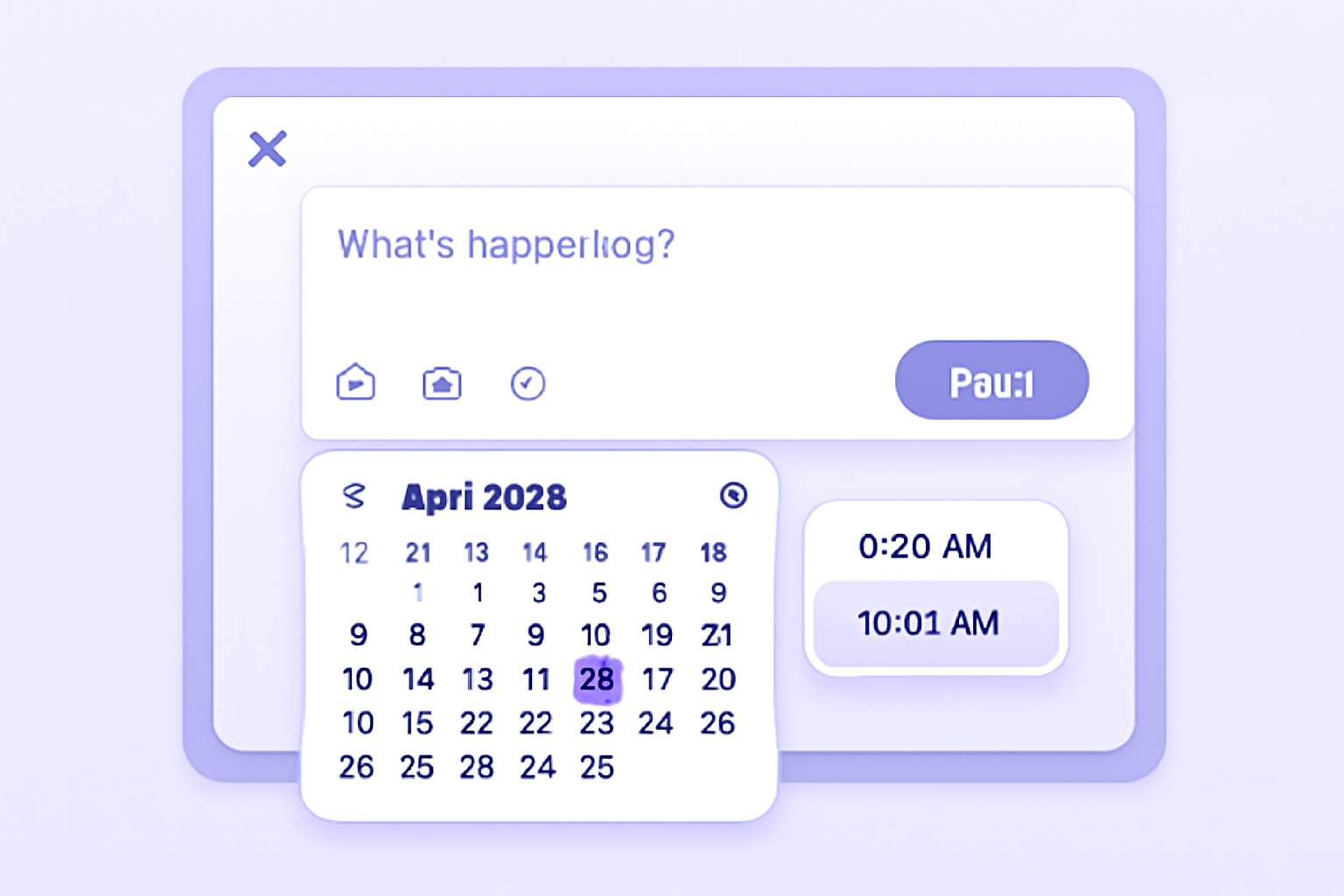
Step 3: Click the Calendar Icon
Bottom row of the compose box, between the emoji picker and the location pin, you will see a small calendar icon. Click it.
Step 4: Select Date and Time
Pick the publish date and time. X uses your account's local time zone. The minimum lead time is one minute; the maximum is 18 months ahead. Click "Confirm."
Step 5: Click "Schedule"
The "Post" button now reads "Schedule." Click it. Your tweet drops into the Scheduled queue.
To view, edit, or cancel scheduled tweets: open the compose modal again, click the calendar icon, then click "Scheduled posts" at the bottom of the date picker. You can edit the text, change the time, or delete entirely.
Scheduling a Thread (and Why It Matters)
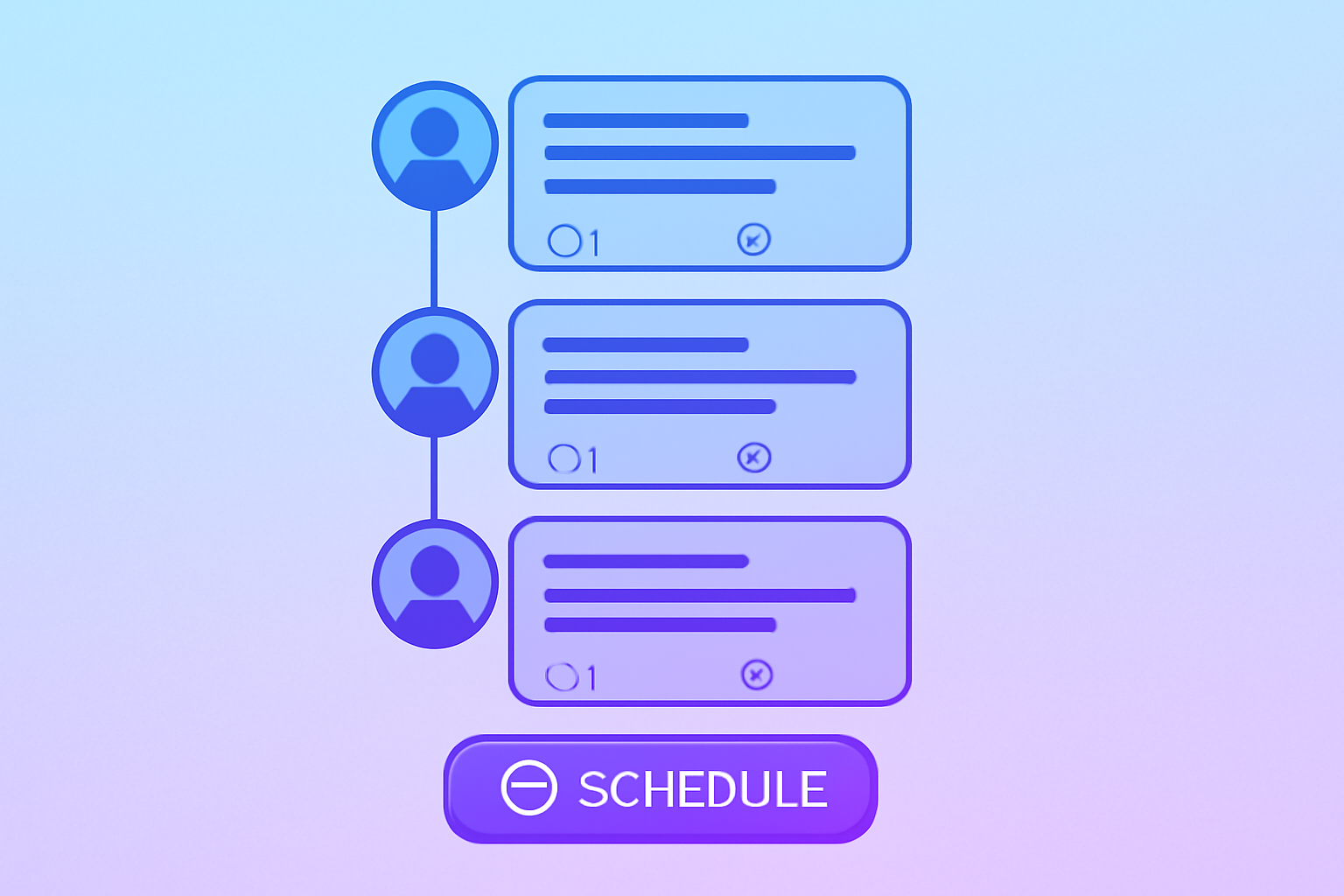
Threads outperform single tweets on engagement because each tweet in a thread generates its own algorithmic signal. The native scheduler supports threads natively: chain tweets with "Add another post," then schedule the entire chain. The whole thread publishes at once, with all replies linked correctly.
Best practice for scheduled threads:
- Hook hard in tweet 1. The first tweet decides whether anyone reads tweet 2. Use a number, a contrarian claim, or a vivid scene.
- Number your posts. "1/" through "8/" lets readers track progress.
- End with a CTA. Ask for retweets, replies, or follows in the final tweet.
- Schedule for peak windows. Tuesday-Thursday, 12 p.m. to 6 p.m. local for most audiences.
According to Digital Applied's 2026 marketing report, retweets surged 35% year over year on X (4.93 to 6.67 per post on average), and threads receive a disproportionate share of those retweets. Our X thread reader guide covers how to structure threads for maximum impact and reuse.
Mobile Workaround: Scheduling Without the Web
X's mobile app lacks a built-in scheduler as of 2026. Three workarounds:
- Use mobile browser desktop view. Open x.com in Safari/Chrome on mobile, request the desktop site, and use the native scheduler from there. Works but the UI is awkward on small screens.
- Save as draft. The mobile app has a Drafts feature in the compose menu. Write your tweet, save as draft, then schedule from desktop later.
- Use a third-party app. Buffer, Hypefury, and Hootsuite all have polished iOS and Android apps with full scheduling support.
For high-volume mobile scheduling, a third-party app is the cleanest solution. The native experience on mobile remains read-only for scheduled posts.
How to Edit or Cancel a Scheduled Tweet
Open the compose modal on x.com web, click the calendar icon, then "Scheduled posts." You will see all queued tweets sorted by publish time.
For each tweet you can:
- Edit the text or media. Click the tweet to open it in the compose box. Make changes, then click "Schedule" again.
- Reschedule. Click the tweet, change the date/time, click "Schedule."
- Delete. Click the trash icon next to the tweet. Confirm.
- Publish immediately. Open the tweet, change the publish time to "now," click Post.
Edits and deletions take effect instantly. There is no penalty or cooldown for canceling scheduled tweets.
Scheduled Tweet Tools Compared
The native scheduler is enough for most users. If you want bulk imports, recurring posts, AI drafting, or multi-account management, consider a paid tool.
| Tool | Cost | Bulk Import | Multi-Account | AI Drafting |
|---|---|---|---|---|
| X native scheduler | Free | No | No | No |
| Buffer | $6+/month per channel | Yes (paid) | Yes | Add-on |
| Hypefury | $19+/month | Yes | Yes (5 accounts) | Yes |
| TweetHunter | $49+/month | Yes | Yes (3 accounts) | Yes |
| Hootsuite | $99+/month | Yes (CSV) | Yes (35+) | Add-on |
| Xarmy AI Scheduler | Free to start | Yes | Yes | Built-in |
For a solo creator publishing 15-30 tweets per week, Hypefury at $19 is the sweet spot. For agencies juggling client brands, Hootsuite or Sprout Social. We built our AI-powered platform to combine smart scheduling with real engagement from 10,000+ verified creators, so the same tool that schedules your tweet also helps it gain the early engagement velocity the algorithm rewards.
The Best Times to Schedule Tweets in 2026
Posting time matters more than most people realize. The X algorithm weights engagement velocity in the first 30 minutes after publishing. If you schedule a tweet for 3 a.m. when no one is online, it never builds momentum.
According to Sprout Social's 2026 data, brands see the most engagement on Tuesdays, Wednesdays, and Thursdays between 12 p.m. and 6 p.m. local time. For B2B accounts, the morning window (9 a.m. to 1 p.m.) often outperforms. For consumer brands, lunch and after-work hours dominate.
Test these against your own audience analytics. Profile clicks across X dropped 31% year over year (from 8.29 to 5.68 per post on average) because the For You feed has become so efficient that decisions happen in-feed. That means scheduling at peak windows is more important than ever for stopping the scroll.
Our engagement rate calculator guide covers how to identify your specific peak hours from your historical post data.
Common Scheduled Tweet Mistakes
Five mistakes that sink scheduled posts.
1. Wrong Timezone
The native scheduler defaults to your account's local timezone. Third-party tools sometimes default to UTC. Confirm before scheduling, especially if your audience is in a different region.
2. Ignoring the First 30 Minutes
Scheduling without showing up to engage with early replies kills momentum. Block 20-30 minutes after each scheduled post to actively reply.
3. All Posts in the Same Format
If every scheduled tweet is a link post, the algorithm flags your account as low-quality. Mix in threads, image posts, polls, and standalone text.
4. Stale Content
Scheduling 30 days in advance means your content might feel out of date when it publishes. Schedule the next 5-7 days, then refresh weekly with current-event posts.
5. Duplicate Tweets
X's duplicate content policy flags posts with identical text within 24 hours. If you queue the same tweet variant for multiple accounts, vary the wording.
Frequently Asked Questions
How do I schedule a tweet on Twitter (X) for free?
Use X's native scheduler in the web compose box at x.com. Click the calendar icon at the bottom of the compose modal, pick a date and time, and click "Schedule." The feature is free, unlimited, and supports up to 18 months in advance for any single account.
Can I schedule a tweet from my phone?
Not directly in the X mobile app. Workarounds: use the mobile browser in desktop mode, save the post as a draft and schedule from desktop later, or use a third-party app like Buffer or Hypefury that has full mobile scheduling support.
Can I schedule an entire thread?
Yes. In the web compose modal, write your first tweet, click "Add another post" to chain the second, third, etc. Then click the calendar icon and schedule the entire thread. All tweets publish at the scheduled time, in order, as a connected reply chain.
A scheduled tweet on Twitter is the simplest productivity unlock for any creator or brand on X. The native tool covers most use cases for free; paid tools add power features when you scale. Try our AI-powered platform for free to combine smart scheduling with real engagement from verified accounts, the formula that consistently lifts reach in 2026.